Table of Contents
ToggleBuffering Fixes for IPTV: Complete Guide to Smooth Streaming

IPTV buffering is one of the most common problems users face when watching live channels, movies, sports, or on-demand content. Nothing is more frustrating than sitting down to enjoy your favorite program and seeing the video freeze, lag, or keep loading every few minutes.
The good news is that most IPTV buffering problems can be fixed with a few simple checks. In many cases, the issue is not only the IPTV subscription itself. Buffering can also happen because of slow internet, weak Wi-Fi, overloaded devices, poor app settings, outdated software, or using the wrong streaming device.
In this guide, we will explain the most common causes of IPTV buffering and the best ways to fix them. Whether you are using a regular IPTV plan, looking for the best IPTV in USA, or trying to enjoy smooth 4K IPTV, these tips can help improve your streaming experience.
What Is IPTV Buffering?
IPTV buffering happens when your device does not receive video data fast enough to play the stream smoothly. Instead of continuous playback, the video pauses while the device waits for more data.
You may notice IPTV buffering as:
- Channels freezing suddenly
- Video stopping every few seconds
- Long loading time when opening a channel
- Audio playing but video freezing
- Picture quality dropping automatically
- Live TV delay or lag
- App crashing while streaming
- Black screen before the channel loads
Buffering can happen on any device, including Firestick, Android TV Box, Smart TV, MAG box, smartphone, tablet, PC, or IPTV player app.
Common Reasons IPTV Keeps Buffering
Before fixing the issue, it is important to understand what causes IPTV buffering. The most common causes include:
- Slow internet speed
- Weak Wi-Fi signal
- Too many devices using the same network
- Poor IPTV app settings
- Old or low-performance streaming device
- Outdated IPTV app
- VPN problems
- ISP throttling
- Server overload from the IPTV provider
- Low-quality or unstable IPTV service
- Trying to stream 4K IPTV without enough bandwidth
- Incorrect player or decoder settings
If you want a stable streaming experience, you need both a good setup and a reliable IPTV subscription from a legal and trustworthy provider.
1. Check Your Internet Speed
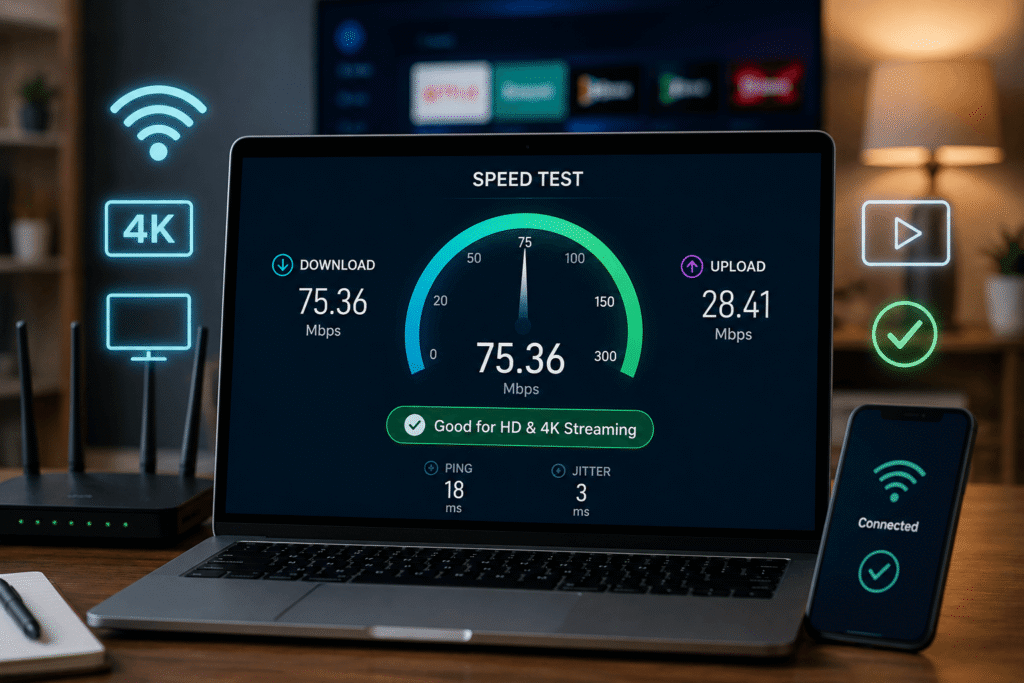
The first step is to test your internet speed. IPTV needs a stable connection, not just a high advertised speed. Many users pay for fast internet but still get buffering because the actual speed reaching their device is much lower.
For general IPTV streaming, these are recommended speeds:
Streaming Quality | Recommended Speed |
SD IPTV | 5–10 Mbps |
HD IPTV | 15–25 Mbps |
Full HD IPTV | 25–40 Mbps |
4K IPTV | 50 Mbps or higher |
For 4K IPTV, speed matters even more. A 4K stream uses much more data than a standard HD stream. If your internet speed is below 50 Mbps, you may experience freezing, lag, or quality drops.
To test your speed, use a speed test app or website on the same device where you watch IPTV. Do not only test on your phone if you watch IPTV on your TV. The speed on your TV or Firestick may be lower than the speed on your phone.
2. Use a Wired Ethernet Connection
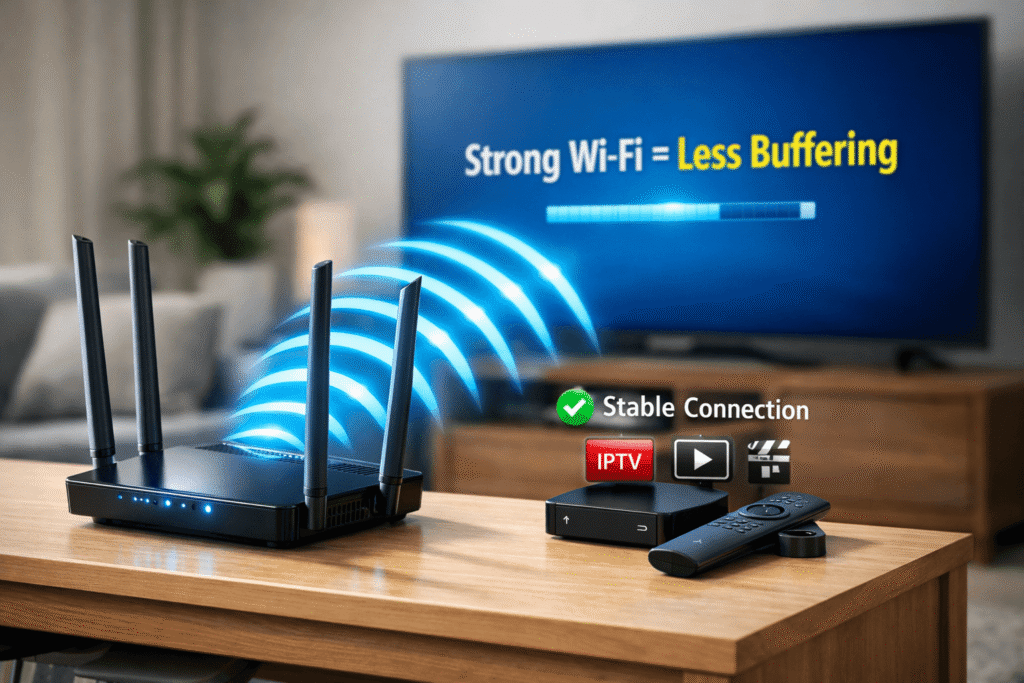
Wi-Fi is convenient, but it is not always stable enough for IPTV. A wired Ethernet connection is usually faster and more reliable.
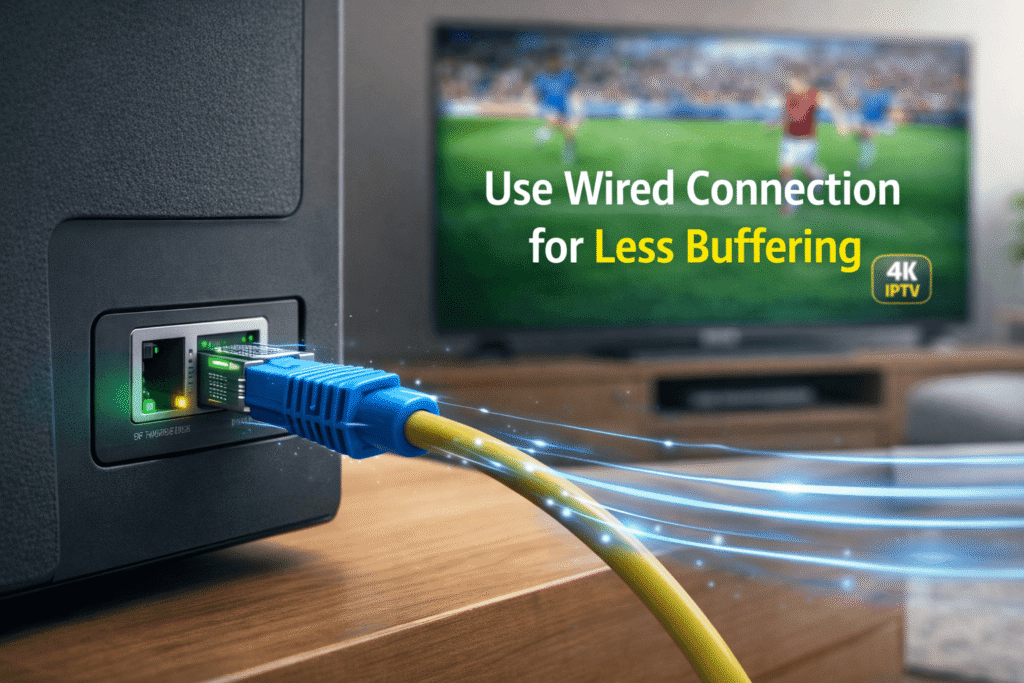
If possible, connect your streaming device directly to your router using an Ethernet cable. This can reduce buffering, especially for live TV and 4K IPTV.
Benefits of Ethernet for IPTV:
- More stable connection
- Lower latency
- Less interference
- Faster data transfer
- Better for live channels
- Better for 4K IPTV streaming
If your device does not have an Ethernet port, you may be able to use a USB Ethernet adapter, depending on the device.
3. Improve Your Wi-Fi Signal
If you cannot use Ethernet, improve your Wi-Fi connection. A weak Wi-Fi signal is one of the biggest causes of IPTV buffering.
Try these Wi-Fi fixes:
- Move your router closer to your streaming device
- Avoid placing your router behind walls or inside cabinets
- Keep the router away from microwaves and cordless phones
- Restart your router weekly
- Use the 5 GHz Wi-Fi band if your device is close to the router
- Use the 2.4 GHz band if your device is far from the router
- Consider a Wi-Fi extender or mesh Wi-Fi system
For the best IPTV experience, your streaming device should receive a strong and stable Wi-Fi signal. A weak signal can make even the best IPTV service perform poorly.
4. Restart Your Router and IPTV Device
Sometimes, a simple restart can fix IPTV buffering. Routers, modems, and streaming devices can slow down over time due to memory usage, software errors, or network congestion.
Restart your setup in this order:
- Turn off your IPTV device
- Unplug your router and modem
- Wait 60 seconds
- Plug the modem back in
- Plug the router back in
- Wait until the internet is fully connected
- Turn your IPTV device back on
- Open your IPTV app and test again
This simple step often fixes freezing, slow loading, and channel lag.
5. Close Background Apps
If you are using a Firestick, Android TV Box, Smart TV, or mobile device, background apps can use memory and internet bandwidth. This can cause IPTV buffering.
Close apps running in the background, especially:
- YouTube
- Netflix
- Browser apps
- Download apps
- VPN apps not in use
- Games
- File manager apps
- Other streaming apps
Low memory can cause IPTV apps to freeze or crash. If your device is old or has limited RAM, closing unused apps can improve performance.
6. Clear IPTV App Cache
Over time, IPTV apps store temporary data. This cache can become too large or corrupted, causing buffering, freezing, or slow loading.
To clear cache on Android TV or Firestick:
- Go to Settings
- Open Applications
- Choose Manage Installed Applications
- Select your IPTV app
- Click Clear Cache
- Restart the app
Do not clear data unless you know your login details, playlist URL, or portal information. Clearing data may remove your saved IPTV subscription settings.
7. Update Your IPTV App
An outdated IPTV app can cause performance problems. Developers release updates to fix bugs, improve playback, and support newer devices.
Make sure your IPTV player is updated. Popular IPTV player apps often improve stability over time, especially for live TV and 4K IPTV.
You should also update:
- Firestick software
- Android TV firmware
- Smart TV firmware
- IPTV player app
- Media player app
- VPN app, if used
Keeping everything updated helps reduce buffering and compatibility issues.
8. Try a Different IPTV Player
Sometimes the problem is not your internet or IPTV subscription. The issue may be the IPTV app itself.
Different IPTV players handle streams differently. Some apps perform better with live TV, while others are better for VOD or 4K IPTV.
Common IPTV player features to check:
- External player support
- Hardware decoding
- Buffer size settings
- EPG support
- Catch-up TV support
- Multi-screen support
- M3U and Xtream Codes support
If your current app keeps buffering, try another legal IPTV player that supports your provider’s format. A better player can make a big difference.
9. Adjust Buffer Size in the IPTV App
Many IPTV apps allow you to adjust buffer size. A larger buffer can help if your internet connection is unstable.
Look for settings like:
- Buffer size
- Player buffer
- Network buffer
- Playback buffer
- Stream format
- Decoder setting
If your app allows buffer adjustment, try increasing the buffer slightly. Do not set it too high, because this may increase channel loading time. A medium buffer setting is often best for stable playback.
10. Change Video Decoder Settings
Some IPTV apps offer different decoder options, such as hardware decoder and software decoder.
Try switching between:
- Hardware decoder
- Software decoder
- Native player
- External player
Hardware decoding usually works better on modern devices. Software decoding may help on some older devices or specific streams.
If your IPTV channel freezes, has audio delay, or shows a black screen, changing the decoder setting may fix the problem.
11. Reduce Streaming Quality
If your IPTV keeps buffering, try lowering the stream quality. This is especially useful if your internet speed is limited.
For example, instead of watching in 4K, try Full HD or HD. A 4K IPTV stream requires more bandwidth, more processing power, and a more stable connection.
You may need to reduce quality if:
- Your internet speed is below 50 Mbps
- Your Wi-Fi signal is weak
- Multiple people are using the internet
- Your IPTV device is old
- You are using a VPN that slows the connection
- The stream freezes during peak hours
Lowering quality can help keep playback smooth.
12. Disconnect Other Devices From Your Network
IPTV buffering can happen when too many devices are using your internet at the same time.
Your connection may slow down if other people are:
- Watching Netflix
- Playing online games
- Downloading large files
- Using video calls
- Uploading files
- Streaming YouTube
- Updating devices
If your IPTV buffers during busy hours at home, disconnect unused devices or pause large downloads.
For households with many users, a faster internet plan may be needed, especially for 4K IPTV.
13. Use a Better Streaming Device
Not all streaming devices are powerful enough for smooth IPTV. Cheap or old devices may struggle with HD and 4K content.
A weak device can cause:
- Slow channel loading
- App crashes
- Freezing
- Audio delay
- Overheating
- Poor 4K playback
For better IPTV performance, choose a device with:
- Strong processor
- At least 2 GB RAM
- Good Wi-Fi support
- Ethernet option
- Updated operating system
- 4K support if needed
Even the best IPTV service may buffer if your device is too slow or outdated.
14. Check If Your Device Is Overheating
Streaming devices can overheat during long viewing sessions. Firestick, Android boxes, and compact TV devices are especially prone to heat issues.
Signs of overheating include:
- App freezing
- Device restarting
- Slow menus
- Video stuttering
- Sudden buffering after long use
To reduce overheating:
- Keep the device in open air
- Do not place it behind the TV without ventilation
- Use an HDMI extender for Firestick
- Turn off the device when not in use
- Avoid running too many apps
A cooler device usually performs better.
15. Test With and Without VPN
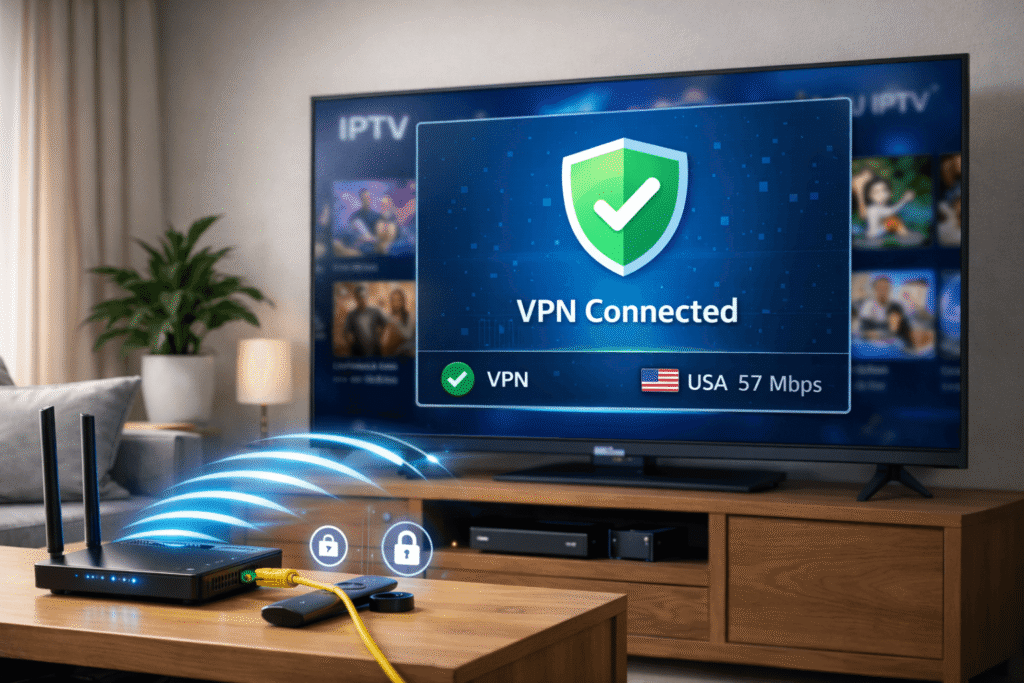
A VPN can sometimes help IPTV performance, especially if your internet provider slows down streaming traffic. However, a VPN can also make buffering worse if the VPN server is slow or far away.
Test IPTV in two ways:
- Watch with VPN turned off
- Watch with VPN turned on
If IPTV works better with VPN, your ISP may be slowing or filtering the connection. If IPTV works worse with VPN, try a different VPN server closer to your location.
For users searching for the best IPTV in USA, choosing a nearby VPN server in the United States may improve performance when VPN use is necessary.
Only use reputable VPN services and make sure your streaming activity follows applicable laws and service terms.
16. Check for ISP Throttling
ISP throttling happens when your internet provider slows down certain types of traffic. This can affect IPTV streaming, especially during peak hours.
Signs of possible throttling:
- IPTV buffers but other websites work fine
- Speed test looks normal but streaming is slow
- IPTV works better with VPN
- Buffering happens mostly at night
- Certain channels buffer more than others
If you suspect throttling, test your IPTV connection with a reliable VPN. You can also contact your internet provider and ask whether there are network restrictions or congestion issues.
17. Change DNS Settings
Sometimes changing DNS can improve loading speed and connection stability. DNS does not directly increase your internet speed, but it may help your device connect faster to streaming servers.
Common DNS options include:
- Google DNS
- Cloudflare DNS
- OpenDNS
You can change DNS settings on your router or streaming device. After changing DNS, restart your device and test IPTV again.
18. Avoid Using Free or Unstable IPTV Services
Free IPTV services often buffer because they use overloaded servers, unstable links, or unreliable sources. These services may also carry security and legal risks.
A reliable IPTV subscription should offer:
- Stable servers
- Clear pricing
- Customer support
- Compatible apps
- Legal content access
- Good uptime
- HD and 4K options
- Secure payment options
- Transparent service terms
When choosing the best IPTV service, do not look only at the number of channels. Stability, legality, support, and stream quality are more important.
19. Check IPTV Server Status
Sometimes buffering is not your fault. The IPTV provider’s server may be overloaded or down.
Server problems often happen during:
- Major sports events
- New movie releases
- Weekend peak hours
- Evening viewing times
- Provider maintenance
- Server migration
If many channels buffer at the same time, contact your IPTV provider and ask if there is a server issue.
A professional IPTV provider should be able to confirm whether the issue is temporary or related to your account, app, or playlist.
20. Try a Different Channel Source
Some IPTV providers offer multiple sources for the same channel, such as SD, HD, FHD, and 4K. If one channel buffers, try another version.
For example:
- Try HD instead of 4K
- Try SD if your internet is slow
- Try backup channels if available
- Try another regional version
- Try VOD instead of live stream
This is especially useful for live sports or popular events where one stream may be overloaded.
21. Make Sure Your IPTV Subscription Is Active
An expired or limited IPTV subscription can cause login errors, channel loading problems, or black screen issues.
Check:
- Subscription expiration date
- Username and password
- Portal URL
- M3U playlist URL
- Device limit
- Whether your account is active
- Whether your provider changed server details
If you recently renewed your IPTV subscription, restart your app or refresh your playlist.
22. Refresh Your Playlist or Portal
If channels are not loading correctly, refresh your IPTV playlist.
Depending on your app, you may see options like:
- Refresh playlist
- Update channels
- Reload portal
- Refresh EPG
- Sync account
- Update content
This can fix missing channels, outdated links, or VOD loading errors.
23. Use the Correct App for Your IPTV Provider
Not every IPTV app works well with every provider. Some providers support Xtream Codes login, while others use M3U playlists or portal-based systems.
Before installing an app, check which format your provider supports:
- M3U URL
- Xtream Codes API
- MAG portal
- Stalker portal
- App login
- Web player
Using the wrong app can cause freezing, missing channels, or login errors.
24. Check EPG Settings
EPG means Electronic Program Guide. A broken or heavy EPG can slow down some IPTV apps.
If your IPTV app becomes slow or freezes when opening the guide, try:
- Refreshing the EPG
- Clearing EPG cache
- Reducing EPG days loaded
- Disabling unused categories
- Restarting the app after EPG update
A large EPG can use device memory, especially on low-end streaming devices.
25. Remove Unused Channels and Categories
Some IPTV services include thousands of channels. Loading too many categories can slow down your app.
If your app supports favorites or category hiding, remove channels you do not watch.
This can improve:
- App speed
- Channel loading
- EPG performance
- Navigation
- Device memory usage
A clean IPTV app setup often performs better than a crowded one.
26. Check Router Quality
Your router plays a major role in IPTV performance. An old or low-quality router may not handle modern streaming well.
You may need a better router if:
- Wi-Fi drops often
- IPTV buffers in every room
- Many devices are connected
- Your router is more than 5 years old
- You stream 4K IPTV
- Your internet plan is fast but devices are slow
A modern dual-band or mesh router can improve IPTV streaming quality.
27. Enable QoS on Your Router
QoS means Quality of Service. This router feature lets you prioritize streaming traffic or a specific device.
If your router supports QoS, prioritize your IPTV device. This can help reduce buffering when other devices are using the internet.
QoS is useful if:
- Several people use the same Wi-Fi
- You work from home
- Someone plays online games
- Multiple TVs stream at once
- IPTV buffers when others are online
28. Avoid Peak-Time Network Congestion
IPTV buffering can happen during peak hours when many people are online. This can affect both your home network and your IPTV provider’s servers.
Peak times are usually:
- Evenings
- Weekends
- Major sports events
- Holidays
- New episode releases
If buffering only happens during these times, the issue may be network congestion or provider server load.
A reliable provider with strong infrastructure is important when choosing the best IPTV service.
29. Contact Your IPTV Provider
If you have tried all fixes and the issue continues, contact your IPTV provider. Give them clear details so they can troubleshoot properly.
Include:
- Your device type
- App name
- Internet speed
- Whether you use Wi-Fi or Ethernet
- Channel names that buffer
- Time of day buffering happens
- Whether VOD works
- Whether live TV works
- Whether VPN improves the issue
- Screenshots of errors if available
A good provider should help you identify whether the issue is your device, connection, app, or server.
30. Choose a Reliable IPTV Provider
The quality of your provider matters. The best IPTV in USA should offer stable performance, clear support, legal access to content, and good compatibility with common devices.
When choosing an IPTV provider, look for:
- Legal content rights
- Stable HD and 4K IPTV streams
- Good customer support
- Clear subscription plans
- Trial option if available
- Secure website
- Transparent refund policy
- No misleading claims
- Compatible apps
- Reliable uptime
Avoid services that promise unrealistic access to every premium channel, sports package, or paid event at suspiciously low prices. These services may be unstable, unsafe, or legally risky.
Best Settings for IPTV Streaming
Here are general recommended settings for smoother IPTV streaming:
Setting | Recommended Option |
Connection | Ethernet preferred |
Wi-Fi | 5 GHz if close to router |
Internet speed | 25 Mbps+ for HD, 50 Mbps+ for 4K |
Decoder | Hardware decoder first |
Buffer size | Medium |
VPN | Test both on and off |
Device | Updated streaming device |
App cache | Clear regularly |
Playlist | Refresh when channels fail |
Router | Restart weekly |
These settings can help reduce freezing, buffering, and lag.
IPTV Buffering on Firestick
Firestick is one of the most popular devices for IPTV, but buffering can happen if the device is overloaded.
To fix IPTV buffering on Firestick:
- Restart the Firestick
- Clear IPTV app cache
- Delete unused apps
- Use an HDMI extender
- Move closer to the router
- Use a Firestick Ethernet adapter
- Update Fire OS
- Stop background apps
- Use a lightweight IPTV player
- Check for overheating
For 4K IPTV, make sure you are using a 4K-capable Firestick model and a strong internet connection.
IPTV Buffering on Android TV Box
Android TV boxes vary in quality. Some cheap boxes have weak processors, poor Wi-Fi chips, and limited memory.
To fix buffering on Android TV Box:
- Clear cache
- Restart device
- Use Ethernet
- Update firmware
- Use hardware decoder
- Try a different IPTV player
- Remove unnecessary apps
- Avoid cheap low-RAM devices
- Keep storage space free
A better Android TV Box can improve IPTV performance significantly.
IPTV Buffering on Smart TV
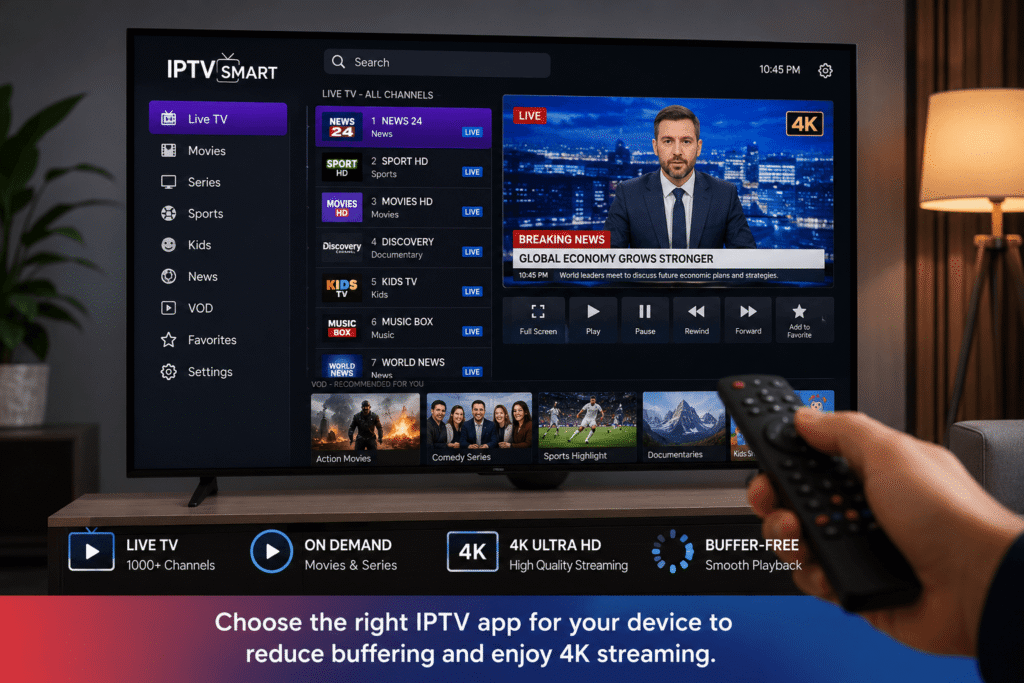
Smart TVs can run IPTV apps, but they are not always the best streaming devices. Some Smart TVs have limited memory and slower processors.
To fix IPTV buffering on Smart TV:
- Restart the TV
- Update TV firmware
- Reinstall IPTV app
- Clear app cache if available
- Use Ethernet
- Reduce stream quality
- Use an external streaming device if needed
If your Smart TV app is slow, using a dedicated streaming device may give better results.
IPTV Buffering With 4K IPTV
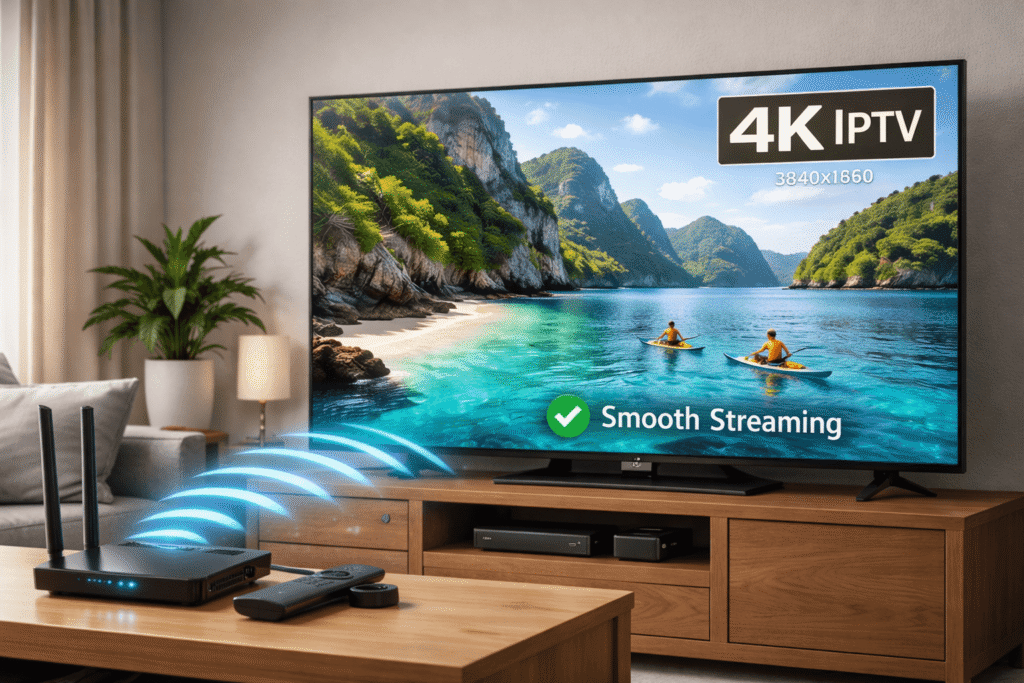
4K IPTV needs more bandwidth and stronger hardware than HD IPTV. If your 4K stream buffers, the problem may be speed, device power, Wi-Fi signal, or server capacity.
For smooth 4K IPTV, you need:
- At least 50 Mbps stable internet
- Strong router
- 5 GHz Wi-Fi or Ethernet
- 4K-capable device
- Updated IPTV app
- Provider with stable 4K servers
- TV that supports 4K playback
If your setup cannot handle 4K, switch to Full HD for smoother playback.
IPTV Buffering Checklist
Use this checklist when your IPTV starts buffering:
- Test internet speed
- Restart router
- Restart IPTV device
- Use Ethernet if possible
- Clear app cache
- Update IPTV app
- Close background apps
- Try another IPTV player
- Change decoder settings
- Lower stream quality
- Test with VPN
- Test without VPN
- Refresh playlist
- Check subscription status
- Contact provider
- Upgrade router or device if needed
This checklist solves most IPTV buffering problems.
Frequently Asked Questions
Why does my IPTV keep buffering?
Your IPTV may buffer because of slow internet, weak Wi-Fi, overloaded servers, outdated apps, device limitations, VPN issues, or an unstable IPTV subscription.
What internet speed do I need for IPTV?
For HD IPTV, 25 Mbps is usually recommended. For 4K IPTV, 50 Mbps or higher is better. Stability is just as important as speed.
Does VPN stop IPTV buffering?
A VPN may help if your ISP is throttling streaming traffic. However, a slow VPN can make buffering worse. Test your IPTV with and without VPN.
Is Wi-Fi good enough for IPTV?
Wi-Fi can work well if the signal is strong. However, Ethernet is usually better for IPTV because it provides a more stable connection.
Why does IPTV buffer at night?
Nighttime buffering often happens because of peak-hour internet congestion or IPTV server overload. Many people stream during evening hours.
Can a bad IPTV provider cause buffering?
Yes. If the provider has overloaded or unstable servers, buffering can happen even if your internet is fast. Choosing the best IPTV service is important for smooth streaming.
Why does 4K IPTV buffer more than HD?
4K IPTV uses more bandwidth and requires better hardware. If your internet, device, or provider server is not strong enough, 4K streams may buffer.
How do I know if my IPTV subscription is the problem?
If other streaming apps work fine but IPTV buffers on many channels, your IPTV subscription or provider server may be the issue. Contact support and test another app or device.
Final Thoughts
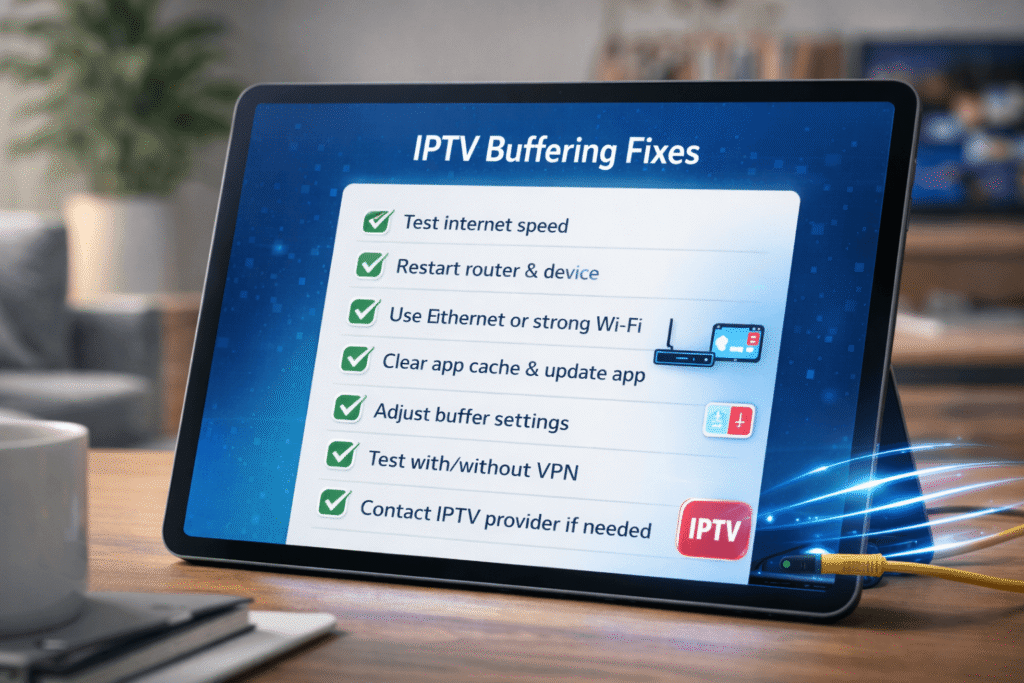
IPTV buffering can be caused by many things, including slow internet, weak Wi-Fi, outdated apps, overloaded devices, VPN problems, or provider server issues. The best way to fix IPTV buffering is to test each part of your setup step by step.
Start with your internet speed, router, device, app cache, and IPTV player settings. If you want smooth HD or 4K IPTV, make sure your connection is fast, your device is powerful enough, and your provider offers stable servers.
When choosing an IPTV subscription, do not focus only on the number of channels. Look for reliability, support, legal content access, device compatibility, and stream quality. The best IPTV service is the one that gives you stable performance, clear support, and a smooth viewing experience.
For users looking for the best IPTV in USA, a strong internet connection, reliable device, and trustworthy provider are the key factors that reduce buffering and improve streaming quality.
2 thoughts on “Best IPTV USA: 7 Easy 4K Buffering & Lag Fixes 2026”